Has your computer been acting weird lately, slowing down, or heating up? If so, you've come to the correct spot. You'll learn exactly how to take care of your computer and keep it functioning properly for years with this article.
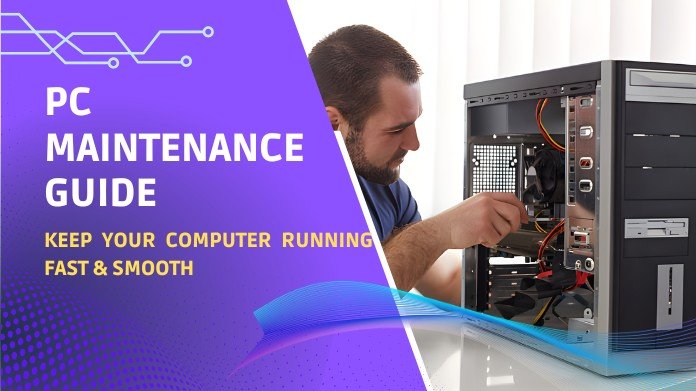
Like any other machine, your PC will remain dependable, fast, and stable with regular maintenance. Maintaining your computer properly can help prevent crashes, slowdowns, and unplanned hardware issues, whether you're a developer, gamer, or casual user.
Other system utilities and tools, such as GuiFormat , are crucial for maintaining the health and optimizing your drives. You can make sure your computer operates at its peak every day with regular maintenance and a few easy habits.
Why PC Maintenance Matters?
Regular maintenance keeps your computer responsive, extends the life of its parts, and reduces the likelihood of security risks. It's an easy habit that prolongs the life of your equipment and enhances performance.
1. Clean Up Storage & Remove Junk Files
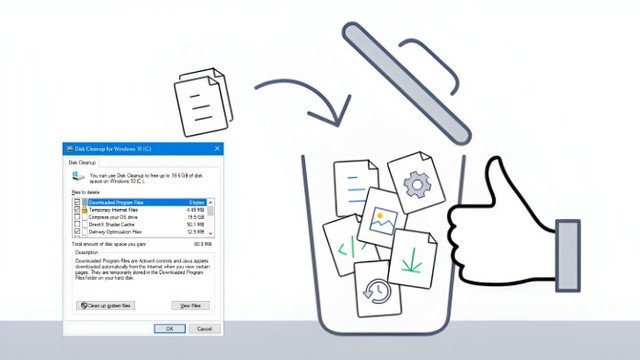
Your computer's performance may slow down over time due to temporary files, leftover installation data, and other digital junk. Eliminating these unnecessary files improves system performance and frees up storage space.
What to Do:
Use Disk Cleanup (Windows) or Manage Storage (macOS) to remove unnecessary files safely.
Clear your browser cache and temporary files regularly.
Uninstall programs and games you no longer use to free up space and reduce background processes.
Move large files, like videos or backups, to an external drive or cloud storage to keep your main drive optimized.
Quick Tip: Maintaining at least 20-25% free space on your SSD or HDD is critical for optimal system performance and read/write speeds.
2. Update Software, Drivers & OS
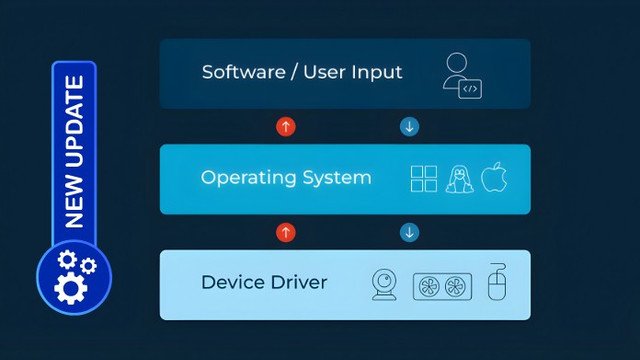
Updating your operating system, drivers, & software is essential for security, stability, and performance. While updates often improve performance and fix bugs, outdated software or drivers can cause slowdowns, bugs, or even system crashes.
What to Update:
Operating System: Install the latest Windows or macOS updates to get security patches and new features.
Drivers: Update GPU, motherboard, and peripheral drivers to ensure smooth hardware performance.
Applications: Keep your apps and antivirus software up to date to prevent compatibility issues and security vulnerabilities.
Regular updates help your PC run efficiently and protect it from potential threats, ensuring a smoother overall experience.
3. Manage Startup Programs
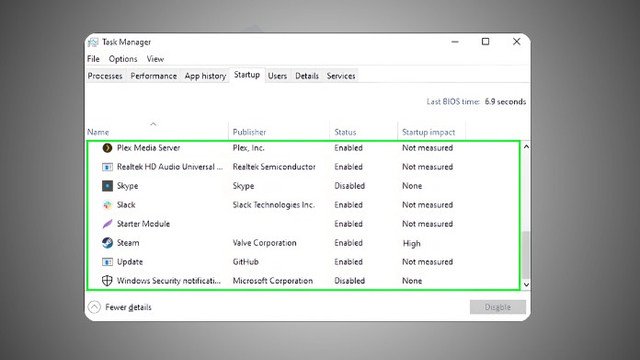
Several applications launch automatically when your computer boots up, which can cause lag in startup times and increased background system resource consumption.
Controlling these apps makes your computer function more smoothly and start up more quickly.
How to Manage:
On Windows, open the Task Manager → Startup tab to see which programs launch at boot.
On macOS, go to System Settings → Users & Groups → Login Items.
Disable apps that aren’t essential, such as software updaters, cloud storage, or game launchers, while keeping security tools and system utilities enabled.
Tip: Regularly reviewing startup programs can prevent unnecessary background processes and significantly improve overall performance.
4. Check for Malware & Security Threats

Viruses, malware, and other security risks can significantly impair your computer's functionality and compromise your personal information.
Malicious software may quietly drain resources, slow your machine, or expose private data even when it appears to be operating normally.
To keep your computer stable and safe, regular security checks are crucial.
What to Do:
Use built-in security tools, such as Windows Security or a trusted antivirus program, for regular scans.
Perform a full system scan at least once a week to detect hidden threats.
Avoid downloading software from untrusted sources & never open suspicious email attachments.
Keep your antivirus software up to date to ensure it can detect the latest threats.
Tip: Enabling real-time protection ensures that threats are blocked as they appear, preventing damage before it happens.
5. Optimize Your Hardware
Updating your software and maintaining your computer's hardware are equally crucial. Properly maintaining your hardware ensures it functions effectively, lasts longer, and prevents unnecessary damage.
Performance and stability can be significantly increased with minor tweaks and updates.
Maintenance Tips:
Ensure proper airflow inside your PC case to prevent overheating. Avoid blocking vents with objects or dust buildup.
Monitor system temperatures and fan performance to catch potential cooling issues early.
Consider upgrading RAM or installing an SSD if your PC feels slow or struggles with multitasking.
Use tools like CrystalDiskInfo or your drive manufacturer’s software to regularly check the health of your storage drives.
Tip: Regularly inspecting and optimizing your hardware can prevent major failures, improve efficiency, and extend the lifespan of your PC components.
6. Defragment or Optimize Drives
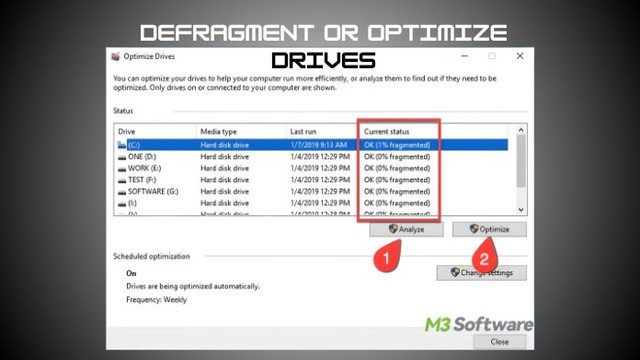
Over time, files on your storage systems may become fragmented, meaning portions of a file are scattered across the disk. This can lead to slower access times and lower overall system performance.
Regularly optimizing your drives allows your PC to access data more efficiently and keeps your Storage healthy.
Tools such as GUI Format can also help with proper drive management and formatting, ensuring that they remain organized and perform optimally.
For HDD (Hard Drives)
Use the built-in Defragment and Optimize Drives tool in Windows.
Defragmentation rearranges fragmented files so they are stored in contiguous blocks, improving read/write speeds.
Schedule regular defragmentation sessions for best results.
For SSD (Solid State Drives)
Do not defragment SSDs, as this can reduce their lifespan.
Modern operating systems automatically optimize SSDs using TRIM, ensuring efficient data storage and improved performance.
Tip: Optimizing your drives and using tools like GUI Format help maintain fast file access, reduce load times, and prevent storage-related slowdowns over time.
Final Thoughts
A well-maintained computer has fewer problems, operates quickly, and lasts longer. Your computer will remain dependable and seamless for many years if you regularly follow these instructions.
Maintenance can be made much simpler by using tools like GUI Format for drive management and keeping up with changes.
The majority of common issues can be avoided before they worsen with a little consistent attention. Recall that being proactive now will save you money, time, and annoyance later.
About the Author:
Hello, my name is Wilford Conrad , and I am a web developer, technology enthusiast, and gamer.
I enjoy researching PCs, software tools, and tech advice and sharing my knowledge to help others make the most of their machines.
I'd love to hear your feedback on this article and which maintenance tips operate best for you.
Ref:
Corvalent. (2025, March 28). Industrial PC maintenance tips: Essential steps for smooth operation. Corvalent. https://corvalent.com/news/industrial-pc-maintenance-tips-10-essential-steps-to-keep-your-equipment-running-smoothly/